Product - Pricing
Resources Partnership Contact
Topics

How to set up Raspberry PI into a Digital Signage player
1. Check Your Pi Model
Ensure you have a Raspberry Pi 4 or 5. Run this command to check your architecture: uname -m
This will show either 'aarch64' (for ARM64) or 'armv7l' (for ARMv7l).
2. Download the Player
Download the appropriate version for your Pi:
3. Install the Player
Open terminal and run the installation command: sudo dpkg -i screenmanager-*.deb
4. Connect to Your Account
To enable to manage and schedule content remotely, you will need to pair your ScreenManager App with our Cloud Content Management System
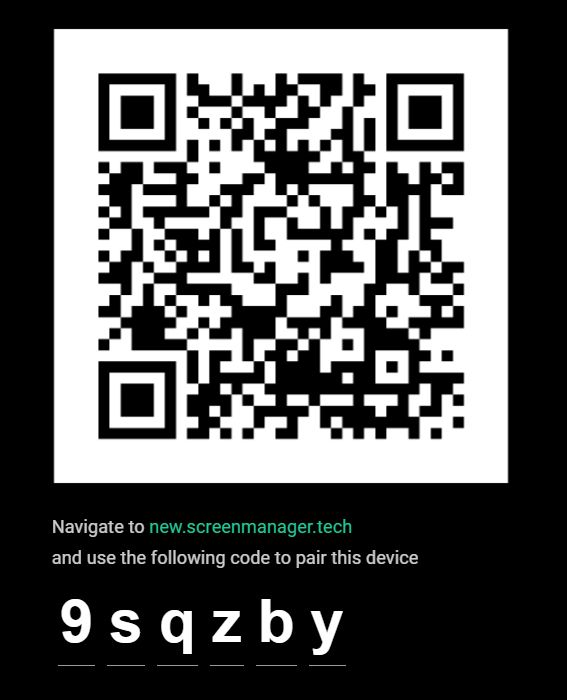
Launch the app and scan the QR code with your phone to connect to your ScreenManager account.
Log into your ScreenManager account.
Then go to the Screens1 section and click on the New Screen2 button.

Enter the pairing code3 you see on your Phillips TV and click Pair screen4.

5. Present Content on the Display
With your device paired and ready to go, you can start presenting your content.
Navigate to Media page and upload images, videos or PDF presentations. To create more complex visuals or use third-party integrations such as Instagram or RSS feed, navigate to Scenes.
Publish content to the paired displays with a single click.

- [email protected]
- +420 604 487 886 (WhatsApp)
VAT: CZ08543682
Kurzova 2222/16 155 00
Prague, European Union