Product - Pricing
Resources Partnership Contact
Topics

How to set up Phillips TV with ScreenManager
If your TV was set up with settings before or was used with a different Digital Signage system, you should make a Factory reset first.
If your TV is new, continue reading.
1. Turn on the display
2. Choose language

3. Connect the TV to the internet
Via a cable or Wi-Fi, depending on your model.

4. Set up security settings
You can skip this step and set them up later.

5. Initial settings configuration
Click on Finish to complete the configuration.

6. Installing Phillips Wave app on a your TV
Before installing the ScreenManager app, firstly you need to enter the Service Menu and install Wave installer app (Phillips TV manager tool) and connect your TV to it.
To enter the Service Menu press the following sequence using the remote control:
Home → 1 → 8 → 8 → 8

You may be asked to insert a PIN first. The default PIN for most Philips TVs is 0000, 1234, or 8888. If these do not work, try entering 0711 or, for some newer models, a master code or resetting the PIN via the TV’s menu.
7. Service Menu
The display will boot into the Service Menu. Choose Apps.

8. Install Wave application
Choose the Wave Installer1 app and click Install Wave2.


After Wave app is installed, TV will show a pairing code.

9. Pairing Phillips Wave app with a your Phillip TV
To pair the TV with your Wave account follow these steps:
- Log into your Wave account.
- Claim the display by adding the code from the TV into the Wave account.

- Select Single display claim.

- Insert the pairing code from the TV and click Claim.

- Finish setting up your TV by adding a name (Alias), Site and Groups (both are voluntary) for your device and selecting Time zone.
Click Save once finished.
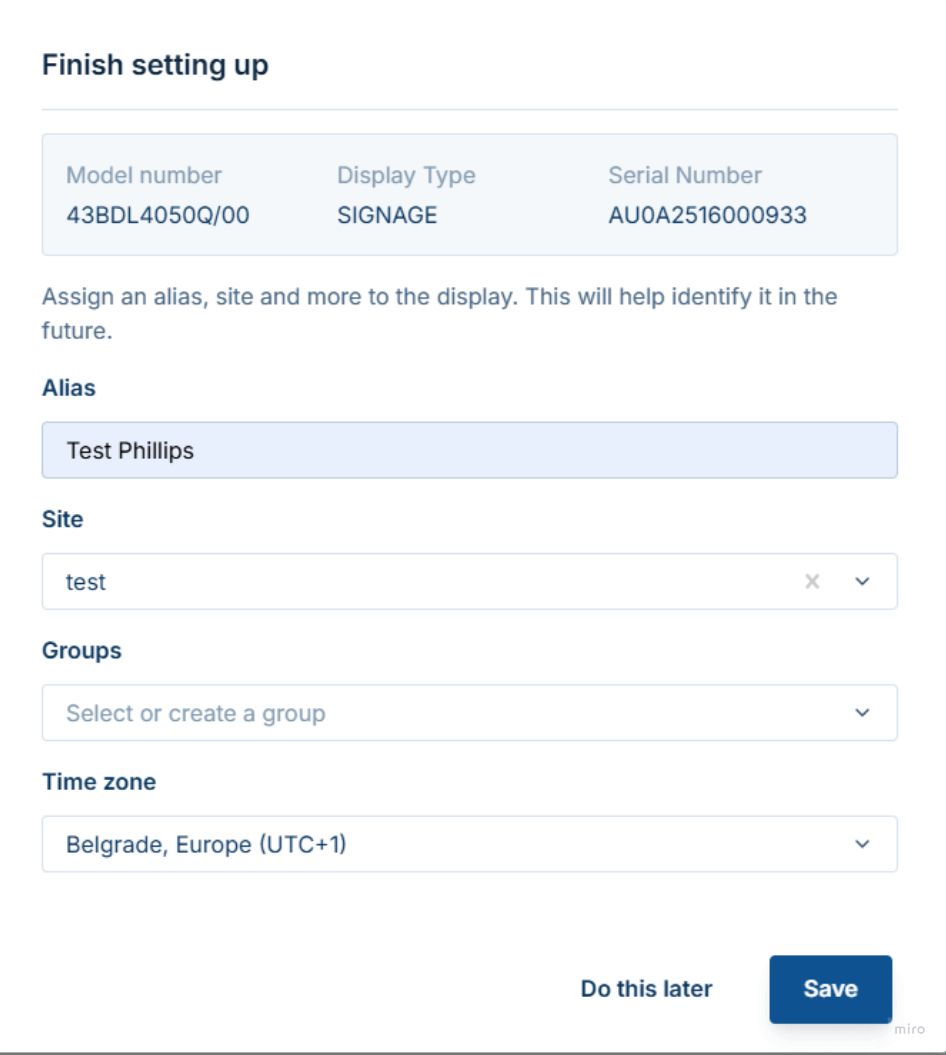
- Wait for the set up to be completed and then click Next.

10. How to install ScreenManager up on your Phillips TV
To install the ScreenManager app on your TV, press on Add content button from the main dashboard of your TV in the Wave account.

Then choose Apps1 tab and then either choose ScreenManager from the available apps2 and click Add3 and then Apply4 or search for ScreenManager in the ProStore and click Try the Free Edition.


After that, ScreenManager app will be installed on your Phillips TV.
11. Pair the Device with your Account
Once the ScreenManager application is installed on your TV, turn it on and you'll see a pairing code displayed on the screen. If you scan it, you will be taken to your ScreenManager account, where you’ll only need to name the device and then you can start using our software immediately.

Alternatively, you can add the pairing code into the ScreenManager web administration manually, name the device and start using the software. To do so:
Log into your ScreenManager account.
Then go to the Screens1 section and click on the New Screen2 button.

Enter the pairing code3 you see on your Phillips TV and click Pair screen4.

12. Set up your screen
Name your screen and choose its rotation.
Optionally, you may also set up Device groups and set up screen orientation.

As well as immediately add a Playlist to your new screen.

That's it! You are ready to start presenting content on your screen.

- [email protected]
- +420 604 487 886 (WhatsApp)
VAT: CZ08543682
Kurzova 2222/16 155 00
Prague, European Union